
Set up the proof video
Add the optional video step to a flow and record every acceptance criterion working in your real app, as a Video tab in the final review.
A passing test suite and an approving reviewer still leave one question open: does the feature actually work when a person uses it? By default, the final review answers it with a summary and a step-by-step guide to test by hand. The video is an optional add-on for when you want to watch it instead. After the review, an agent writes a short browser script that acts out each acceptance criterion, Astranize runs it against the task’s own copy of your app and records the screen. You watch the recording in the Video tab of the final review and approve or reject each criterion.
The video takes real setup: a running app, a login, ports and data. That is why it is not in the default flow. Turn it on when your project has a UI and the setup is worth it.
Before you start
Section titled “Before you start”You need three things in place:
- At least one service in
config.yaml, so there is an app to record. Write config.yaml shows how. - Playwright installed in the repo that will run the recording:
@playwright/testorplaywrightin itsnode_modules, plus the browsers. Astranize runsnpx playwright testthere, but it does not install Playwright for you. - A
videostep in your Flow, after anideatestep. The default Flow does not have one; the next section adds it.
Add the video step to your Flow
Section titled “Add the video step to your Flow”The video is a step like any other. Add it to the Flow your tasks use, between reviewer and summary:
- id: reviewer type: review on_reject: developer - id: video type: video prompt: prompts/video.md tools: [Read, Grep, Glob, Write] downgrade: { model: sonnet, effort: low } - id: summary type: summary - id: validation type: validationIn the app, open the Trajectory, add a step of type Video and save. A step added at the end enters before the summary. The step form warns “Precisa da seção vídeo no config.yaml” until you add the section below.
The order matters: video must come before summary, and summary must come right before validation. A video after summary is a Flow error. The final review is always the last screen, and the video never has a page of its own: it is a tab inside it.
Workspaces you already had keep their Flows as they are. If your Flow already has a video step, nothing changes for you.
Add the video section
Section titled “Add the video section”The smallest video section says where the app is and which repo runs Playwright:
video: base_url: "{services.web.url}" playwright_repo: webbase_url points at the task’s own web service, so the recording never touches your local dev server. playwright_repo must be one of your repos.
Log in before recording
Section titled “Log in before recording”Most apps hide their screens behind a login. Add a login command that signs in and saves the browser session to {storageState}:
video: base_url: "{services.web.url}" playwright_repo: web login: "node {workspaceDir}/scripts/login.mjs --base-url {services.web.url} --out {storageState}"The command runs in the Playwright repo’s worktree after the services are healthy, and must exit 0 within 5 minutes. The config guide has a sample script.
If you saved a login session in the Vault, set session to its name instead. When the Vault is locked, the task pauses with a “Vault locked” decision rather than failing.
What the video agent writes
Section titled “What the video agent writes”The agent gets a prompt with the task’s active criteria, the base URL and the exact path to write. It answers with one Playwright file, which Astranize calls the spec. The spec must follow four rules:
- It is written to
runs/<task>/video/<task>.spec.ts, and nothing else is written (except a data script, covered in Good to know). - It imports
testandexpectfrom./astra-fixtures, not from@playwright/test. - It has exactly one test per active criterion, titled with the criterion id and a colon, such as
test('AC-1: filters the list', ...). - It opens pages with relative paths, acts the way a person would, then asserts.
A spec for two criteria looks like this:
import { test, expect } from './astra-fixtures';test('AC-1: shows it', async ({ page }) => { await page.goto('/'); });test('AC-2: shows it', async ({ page }) => { await page.goto('/'); });What happens when the step runs
Section titled “What happens when the step runs”-
Astranize prepares worktrees for the task’s repos, the Playwright repo and any repo whose services are needed. Then it starts the services in
depends_onorder, on the task’s own ports. -
If you set
loginorsession, the browser session is saved toruns/<task>/video/storage-state.json. -
The video agent writes the spec. Before running it, Astranize checks that every active criterion has a test.
-
Playwright runs the spec and records it. All criteria play in sequence on one page, in one video, at a 1280x720 viewport and in slow motion. Before each criterion the page goes back to
about:blank; after it, the page holds still for a moment and a screenshot is taken. -
The services stop. The step passes even when some criteria failed, because the verdict is yours: failed criteria show as
✕ videoon the validation screen.
Each criterion gets 60 seconds, and a failure does not stop the next one. If a service fails or never gets healthy, the task blocks with services_failed and the last 40 log lines.
Try it without a browser
Section titled “Try it without a browser”You can run the step end to end with stand-ins. --fake replaces the agents, and --fake-playwright <module> replaces the Playwright run with a module that default-exports { runPlaywright }. This run used the services and login from the config guide:
astranize approve t-0001 --workspace notes --repos web \ --fake ./run.mjs --fake-playwright ./playwright.mjs --follow{"type":"step_agent","taskId":"t-0001","step":"video","cycle":1,"note":{"executor":"claude","model":null,"effort":null,"downgraded":false,"overridden":false,"switchedFrom":null,"permissionMode":"ask"},"at":"2026-11-20T02:39:30.266Z"}{"type":"step_finished","taskId":"t-0001","step":"video","cycle":1,"outcome":"passed","at":"2026-11-20T02:39:30.404Z"}The fake agent wrote the two-criterion spec shown above. The first line of video.jsonl is the login script’s output:
{"type":"login","stream":"stdout","line":"logged in to http://localhost:55928"}The validation screen reads its data from criteria-results.json:
[ { "id": "AC-1", "status": "passed", "durationMs": 100, "videoPath": "~/.astranize/workspaces/notes/runs/t-0001/video/video.webm", "videoAtMs": 0, "framePath": "~/.astranize/workspaces/notes/runs/t-0001/video/frames/AC-1.png", "dataSource": "environment" }, { "id": "AC-2", "status": "passed", "durationMs": 100, "videoPath": "~/.astranize/workspaces/notes/runs/t-0001/video/video.webm", "videoAtMs": 100, "framePath": "~/.astranize/workspaces/notes/runs/t-0001/video/frames/AC-2.png", "dataSource": "environment" }]Review the video
Section titled “Review the video”When the video is ready, the summary agent runs, and then the task shows Waiting for your validation and moves to For you. The summary sees the video result. This is where the recording pays off: the final review has a Video tab, shown only when the add-on ran, and you watch each criterion happen and decide.
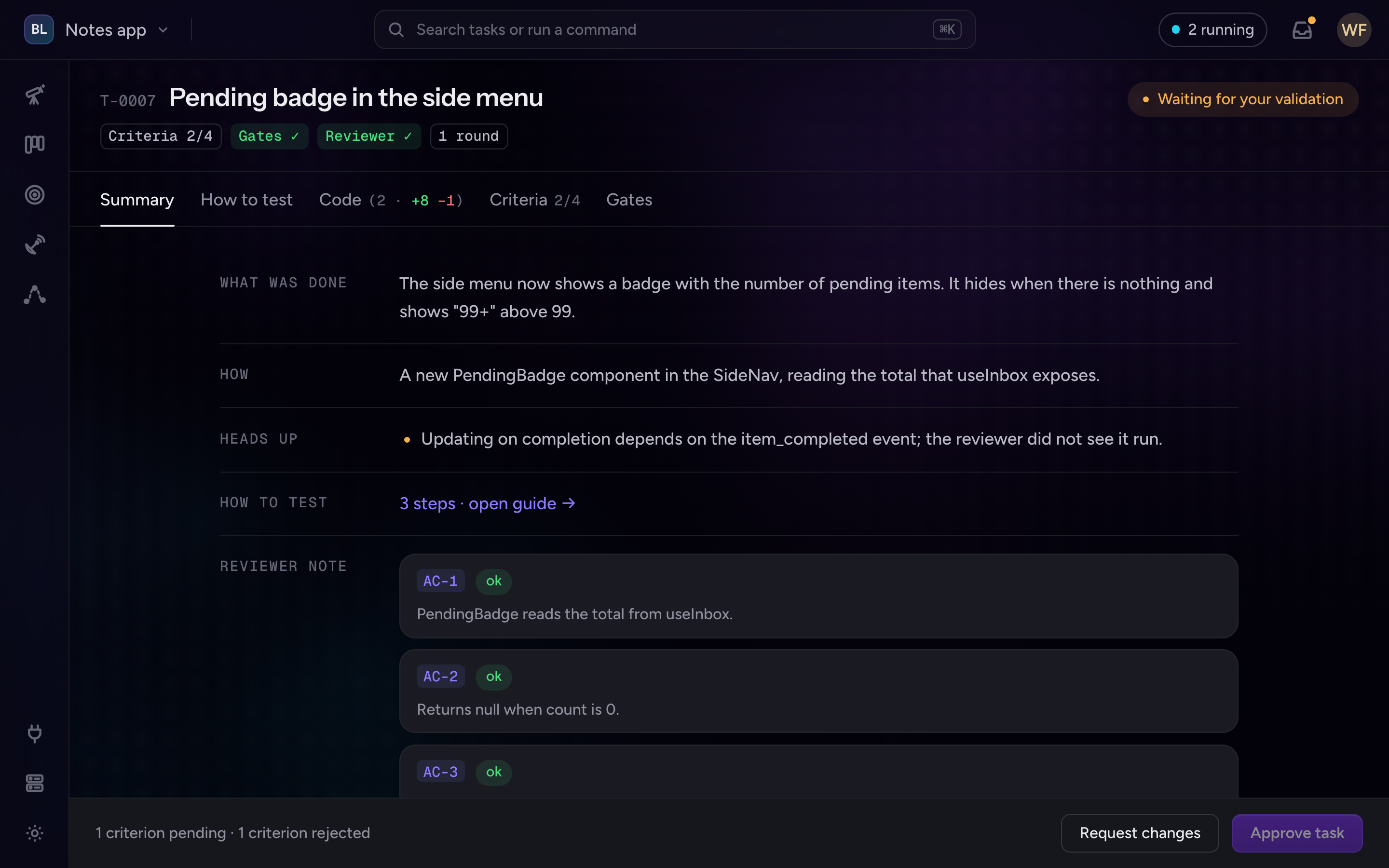
Open the task and click Validate, or Validate delivery on its card in For you, then open the Video tab.
- The player shows the recording with a timeline split by criterion, green for passed and red for failed. Click a criterion, or one of the key moments below the player, to jump to its start.
- In Criteria, each criterion card shows its trail:
✓ testor— no test, the reviewer’s mark,✓ videoor✕ video, andmocked datawhen the spec faked the API. - Approve or reject each criterion. A rejection asks “Why isn’t it approved?”.
- “Found something outside the criteria? Add a finding.” records a problem no criterion covers, together with the moment in the video.
- Summary, How to test, Code and Gates work the same as without the video.
When every criterion is approved, Approve task finishes the task. Otherwise click Request changes: the text is prefilled with your rejections, and you can send it back to the dev (the implementation is wrong) or to the ideator (a criterion was wrong or missing).
validate <task> --file verdict.json sends the same answer without the app. The video and frames are in runs/<task>/video/, listed under Where the files land.
{ "criteria": [{ "id": "AC-1", "verdict": "approved" }, { "id": "AC-2", "verdict": "rejected", "reason": "The list does not filter while typing." }], "extraFindings": [], "route": "developer"}Mark when the video caught a miss
Section titled “Mark when the video caught a miss”Sometimes the video shows a problem the reviewer approved. Mark the task so the Observatory counts it in its “video caught” metric. A task with failed video criteria already counts on its own.
In the header of the final review, turn on The video caught a bug. Click it again to turn it off.
astranize video-caught t-0001 --workspace notesastranize video-caught t-0001 --workspace notes --offEach command prints the updated task, with "videoCaughtMiss":true and then "videoCaughtMiss":false.
Good to know
Section titled “Good to know”A missing test gets a second try
Section titled “A missing test gets a second try”If any active criterion has no test('AC-n: ...'), the attempt fails and the video agent tries again with the error in its prompt. After max_attempts (2 by default) the task blocks:
{"event":"blocked","data":{"reason":"video_script_failed","error":"spec has no test for criteria: AC-2"}}The same reason covers a spec that was never written, a Playwright run with no results report, and a report that is not valid JSON. Fix the cause and retry the task.
The test mark is about your own tests
Section titled “The test mark is about your own tests”The ✓ test or — no test mark on each criterion has nothing to do with the video. It is ✓ test when a changed *.test.*, *.spec.* or *Test.php file mentions the criterion id.
Give the video its own data
Section titled “Give the video its own data”When a service in config.yaml has run_data, the agent may also write a data script for the scenario it records. It runs in that service before Playwright, and a failing script blocks the task with video_data_failed.
For a frontend-only project, set data: mock in the video section. The agent then fakes the API with page.route instead, and each criterion shows mocked data.
Pace of the recording
Section titled “Pace of the recording”slow_mo_ms (default 700) slows every Playwright action so the video is watchable, and hold_ms (default 1500) is the pause on the final state of each criterion. Playwright runs with one worker and no retries.
Where the files land
Section titled “Where the files land”Directory~/.astranize/workspaces/notes/runs/t-0001/
Directoryservices/
- ports.json
- api.log
- web.log
Directoryvideo/
- t-0001.spec.ts the spec the agent wrote
- astra-fixtures.ts
- playwright.config.ts
- storage-state.json written by your login command
- video.webm the recording
Directoryframes/
- AC-1.png
- AC-2.png
- criteria-run.json per-criterion status and start time
- criteria-results.json what the validation screen reads
- results.json Playwright’s JSON report
- video.jsonl setup, login, agent and Playwright log
Directoryoutput/
- …
Astranize writes playwright.config.ts and astra-fixtures.ts itself. When the step starts again, the previous run’s spec, results, recording and frames are deleted.
Troubleshooting
Section titled “Troubleshooting”Run services-check first to separate service problems from video problems.
| Blocked reason | Usual cause |
|---|---|
services_failed |
A service did not get healthy, the login exited non-zero or timed out, or base_url uses an unknown placeholder. Read runs/<task>/services/*.log. |
video_script_failed |
The spec is missing a criterion, or Playwright produced no report. Read video/video.jsonl; the first Playwright Error: line is in the message. |
video_data_failed |
The task data script failed. The first line with “error” or “exception” is in the message. |
Next steps
Section titled “Next steps”- Write config.yaml to set up the services and login the video depends on.
- Build a Flow to skip the video for changes that do not need one.
- Decisions for how For you collects what needs your attention.
- Gates for the checks that run before the video.