
Edit instructions
Change what the agents read before they work, the workspace rules, the step prompts and the repo maps, and bring back an older or deleted version.
Before an agent works on a task, Astranize hands it three kinds of text: the workspace rules, the prompt of its step, and a short map of each repo it touches. Changing them is the cheapest way to change how the agents behave. You can tell every agent to run the tests before it finishes, rewrite the reviewer’s checklist, or correct a repo map that got a folder wrong.
All three live in Settings, Instructions. Every save keeps the previous version, so you can always go back.
What each file does
Section titled “What each file does”The left column of the Instructions section groups the files:
- Rules: one file,
rules.md. Every agent step gets it in its prompt, for every task. Write here what holds for the whole workspace, such as “never edit generated files”. - Prompts: one Markdown file per prompt in
prompts/. A Trajectory step points at one with itspromptkey, sodeveloper.mdis what the developer step reads.initcreatesideator.md,developer.md,reviewer.mdandvideo.md. - Repo maps: one file per repo in
context/, such asapi.md. A map is a short description of the repo’s layout written by an agent. The ideator and the developer build it the first time they work on the repo, and Astranize rebuilds it once the base branch has moved more than 50 commits.
Rules are cut at 8 KB and each map at 6 KB when they go into a prompt, so keep them short.
Edit a file
Section titled “Edit a file”- Open Settings and pick Instructions.
- Click a file in the left column, such as
developer.md. - Type in the Edit tab. A dot next to the file name means it has unsaved changes. You can switch to another file and back without losing them.
- Check the result in the Preview tab, which renders the Markdown.
- Click Save, or Discard to drop your changes.
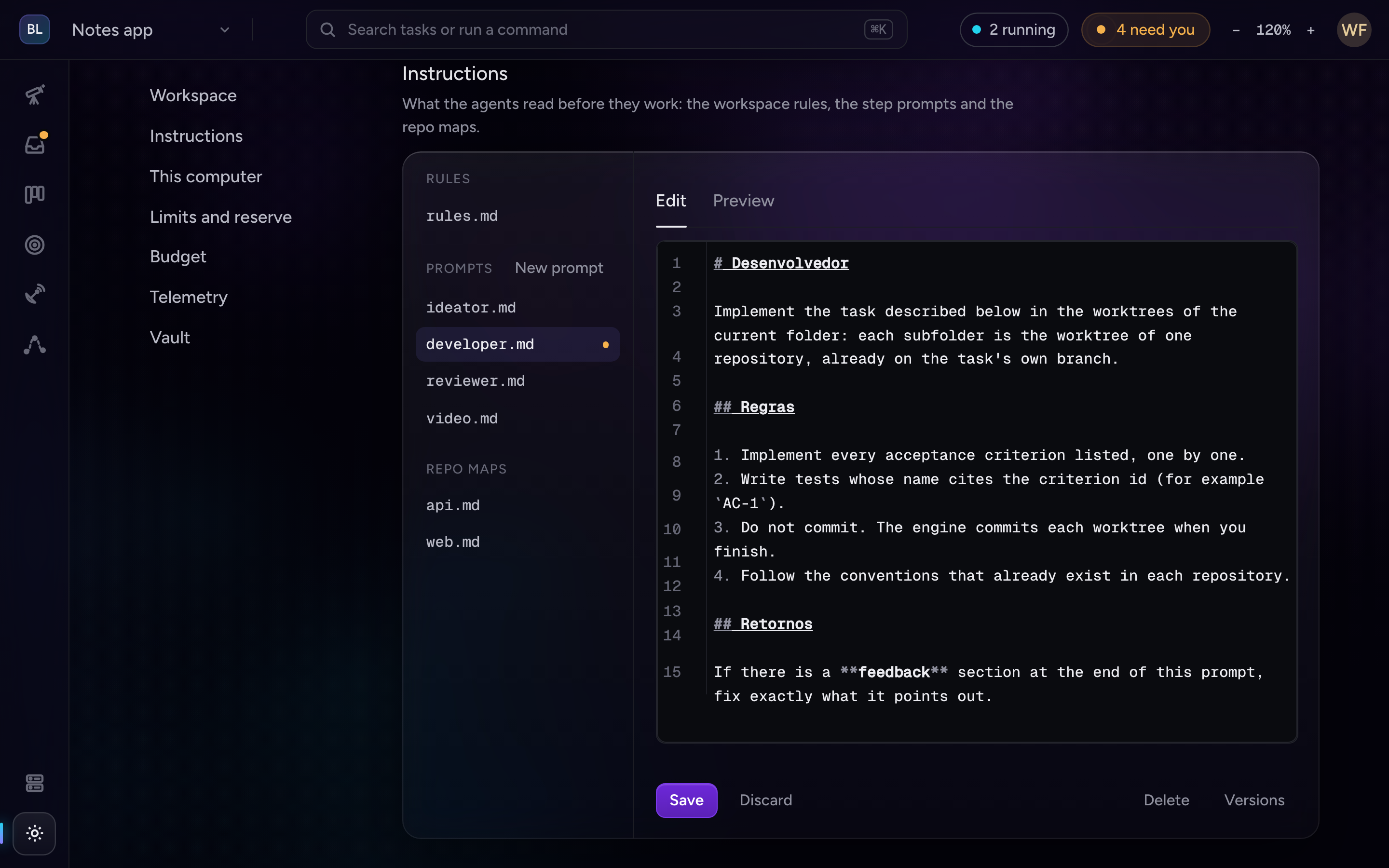
From a Trajectory step, Edit prompt opens the same section with that step’s prompt selected.
Read the file with doc get, which also prints the hash you need to save:
astranize doc get rules --workspace notesThen save new text with doc save. The CLI does not take the text as an argument: you write it to a file in $ASTRANIZE_HOME/tmp/ and pass its id. The doc command page shows how.
{"type":"document_saved","kind":"rules","name":"","hash":"sha256:3f40d73f94068deafde0a34f2ea3a7b9cade56ae1e4e990f2e2d67f74c7aeeaa","validation":{"ok":true,"errors":[],"warnings":[]}}A change reaches the agents on their next run. Steps already running keep the text they started with.
Add a prompt
Section titled “Add a prompt”A new prompt is useful for an agent step, or to give one Trajectory a different developer prompt from another.
Click New prompt above the prompt list, type a name and click Create. The name uses lowercase letters, digits and dashes, and starts with a letter or a digit. The new prompt starts from a short template and opens in the editor.
To use it, set the step’s prompt to prompts/<name>.md in the Trajectory’s YAML tab.
astranize doc create prompt changelog --workspace notes{"type":"document_saved","kind":"prompt","name":"changelog","hash":"sha256:47409d6672f01490c5a1ff40a4ad429e9b403b9196ec79678d907a01648ccf44","validation":{"ok":true,"errors":[],"warnings":[]}}Add --staged <id> to start from your own text instead of the template.
Regenerate a repo map
Section titled “Regenerate a repo map”When a map is out of date, you can fix it by hand like any other file, or ask an agent to write it again.
Open the map, for example api.md, and click Regenerate. Astranize asks first, because this calls an agent and spends subscription tokens, and it runs right away, outside the daemon queue. Click Regenerate now to go ahead.
While it runs the map is read-only, and Save stays off. The previous map is kept in Versions. If you have unsaved changes, save or discard them first: Regenerate stays off until you do.
astranize map --repo api --workspace notes{"type":"maps","repos":[{"repo":"api","status":"generated"}]}Without --repo, it regenerates every repo. See map.
A map file starts with a short header that records the commit it was written from. The Preview tab hides it.
---base_commit: dc9a2928e6ae10a9a2cc9609aa6549c49f5bffd4generated_at: 2026-11-22T04:47:10.456Z---
# api
Express server. Routes in `src/routes`, tests in `test/`.
Go back to an earlier version
Section titled “Go back to an earlier version”Every time you save, delete or restore a file, or a map is regenerated, the version it replaces is kept. Astranize keeps the last 20 versions of each file.
Click Versions next to Save. The list shows when each version was kept and its size. Click Restore on one and confirm. The current text becomes a version too, so a restore can be undone the same way. If you have unsaved changes, the confirmation warns that they will be lost.
astranize doc history prompt developer --workspace notesastranize doc restore prompt developer 2026-11-22T04-43-11.567Z --expect-hash <hash> --workspace notesDelete a prompt and bring it back
Section titled “Delete a prompt and bring it back”Open the prompt and click Delete. The file leaves prompts/ and a copy stays in the history.
Astranize refuses to delete a prompt that a Trajectory or a mission still points at, and lists them. Change those steps first. Rules and repo maps have no Delete.
A deleted prompt shows up under Deleted, below the editor, with the time it was deleted. Restore puts it back with its last text. The Trajectories, Missions and Probes screens have the same Deleted list for their own files.
From the CLI:
astranize doc delete prompt changelog --workspace notesastranize doc list prompt --deleted --workspace notes{"type":"document_deleted","kind":"prompt","name":"changelog","version":{"version":"2026-11-22T04-43-11.567Z","at":"2026-11-22T04:43:11.567Z","bytes":99}}{"type":"deleted_documents","kind":"prompt","documents":[{"kind":"prompt","name":"changelog","version":"2026-11-22T04-43-11.567Z","at":"2026-11-22T04:43:11.567Z"}]}To restore it, pass that version and --expect-hash absent, since the file does not exist:
astranize doc restore prompt changelog 2026-11-22T04-43-11.567Z --expect-hash absent --workspace notesWhen the file changed on disk
Section titled “When the file changed on disk”You can also edit these files in your own editor, and an agent or another window can change them too. Astranize notices. If the file changes while you have unsaved edits, the section shows “The file changed on disk”: Compare shows the disk version next to yours, and Reload brings the disk version and drops yours. Copy what you want to keep before you reload.
A save never overwrites a change it has not seen. The CLI gives the same protection with --expect-hash:
{"type":"error","message":"changed-on-disk: o arquivo mudou no disco; recarregue antes de salvar","code":"changed-on-disk"}Good to know
Section titled “Good to know”- Files are read up to 1 MB. Symbolic links, and files that are not regular files, are refused: edit the original instead.
- History lives in the workspace’s
.history/folder. See Files and directories. - Many engine messages, such as refusals, are in Portuguese even when the app is in English.
Next steps
Section titled “Next steps”- Build a Trajectory: point a step at your new prompt
- The
doccommand: every file the CLI can read and write - Send instructions mid-run: steer one task instead of all of them