
Fleet
Fleet lets you control Astranize on another of your own machines, such as a desktop that runs the heavy tasks while you work on a laptop, over your Tailscale network.
Fleet lets you send work to another of your machines. For example, a desktop in the office runs the heavy tasks while you approve and validate them from your laptop. The tasks of the other machine show on your board with the machine’s name, and from the CLI you add --machine to say where a command runs.
The machines talk to each other directly over your own Tailscale network. There is no Astranize server in between, and nothing is reachable from the open internet.
The Fleet screen
Section titled “The Fleet screen”Open Fleet from the left rail, the icon just above Settings. The screen has two halves.
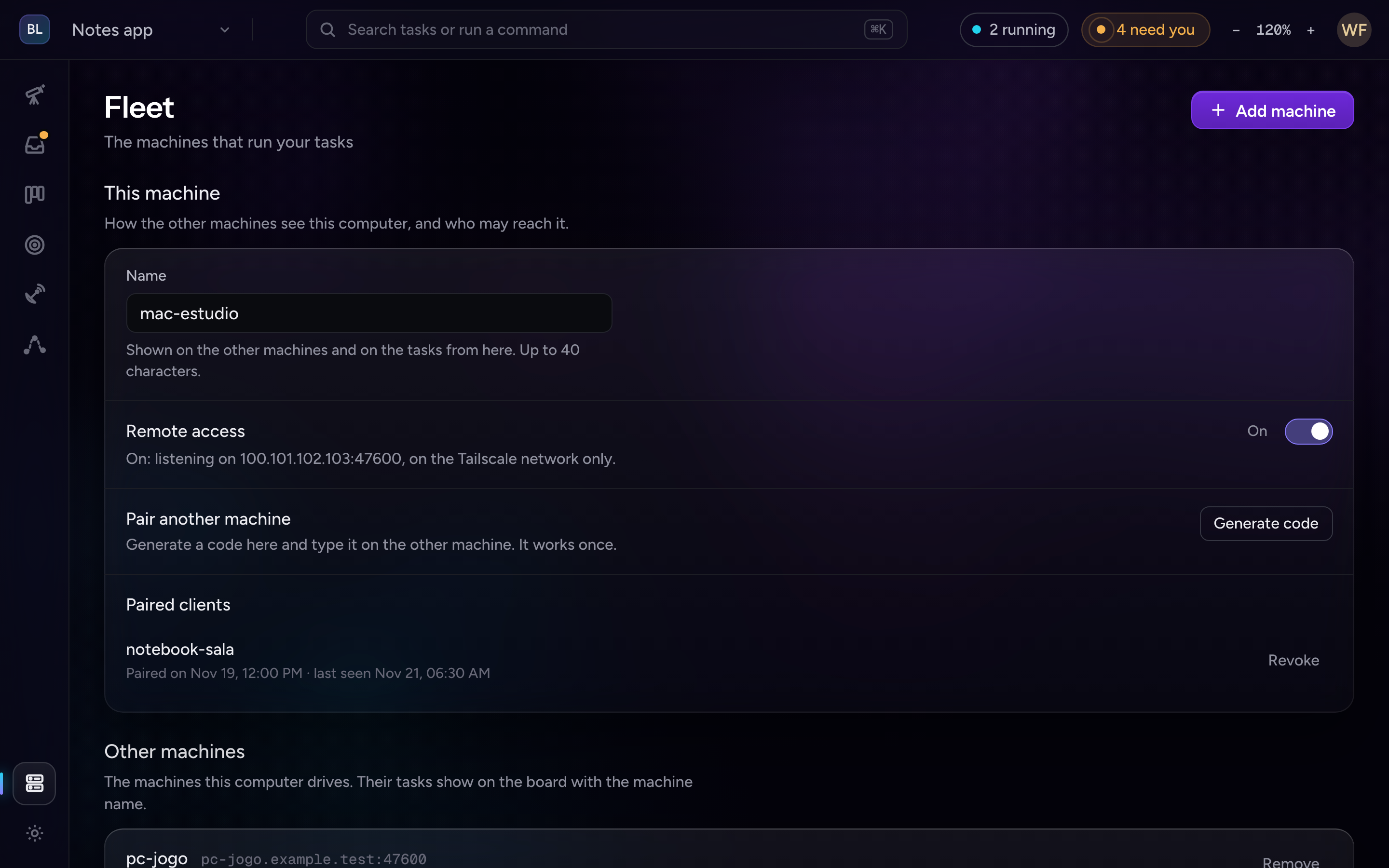
This machine is how the other machines see this computer, and who may reach it:
- Name is shown on the other machines and on the tasks from here, up to 40 characters. Change it and leave the field to save; Esc undoes the edit.
- Remote access is the switch that lets other machines in. Off, only this computer talks to the daemon.
- Pair another machine has Generate code, which gives you a one-time code to type on the other machine.
- Paired clients lists the machines that paired with this one, with when they paired and were last seen, and Revoke.
Other machines lists the machines this computer drives, with their connection status, since when, and their workspaces. Add machine, at the top, pairs a new one. Remove forgets one.
Connect a machine in three steps
Section titled “Connect a machine in three steps”Say the machine that runs the work is called studio-mac, and you work from a laptop.
-
On
studio-mac, open Fleet, turn Remote access on and click Generate code. The code shows under Pairing code with the time it is valid until, and works once. -
On your laptop, open Fleet and click Add machine. Type
studio-mac’s Address (its name or IP on the Tailscale network, with nohttp://) and the Code. Leave Port empty to use the default, 47600. Click Add. The app says “studio-mac joined the Fleet”, and the machine shows under Other machines as Connected. -
studio-mac’s tasks now show on your board with its name.
-
On
studio-mac, turn remote access on and ask for a pairing code:Terminal window astranize remote enableastranize remote code -
On your laptop, add the machine with its Tailscale address (or MagicDNS name) and the code:
Terminal window astranize machines add --address 100.101.102.103 --code K7M2-Q9XA -
Send commands with
--machineand the machine’s key:Terminal window astranize list --workspace notes --machine studio-macastranize approve t-0004 --workspace notes --machine studio-mac --follow
The Vault on your laptop must be unlocked when you add the machine, because that is where the laptop keeps the token it receives. After pairing, the token is listed in Settings, Vault, with the type Paired client token.
The task now runs in studio-mac’s queue, with its memory and its subscription. The Connect a machine guide walks through the whole setup, including Tailscale.
How the connection stays safe
Section titled “How the connection stays safe”Remote access is off until you turn it on. When it is on, the daemon opens a second listener only on the machine’s Tailscale address (in 100.64.0.0/10), on port 47600 by default. A request from any address outside the Tailscale range is refused, even on that listener.
If the machine has no Tailscale address yet, Fleet says “On, but with no Tailscale address” and remote access stays local until one shows up. The daemon checks every 30 seconds.
Pairing is what lets a client in:
- The serving machine issues a one-time code. It is burned after 10 minutes, after 5 wrong tries, or when you turn remote access off.
- The client sends the code and receives a token.
- The client stores the token in its Vault as a
paired_client_tokennamedmachine:<key>. - The serving machine keeps the list of paired clients, so you can see each one and revoke it.
The code itself is only shown once. In the app it appears after Generate code and is gone when you leave Fleet. In the CLI only remote code prints it; remote shows that a code is open and when it expires, never the code.
What you can do on another machine
Section titled “What you can do on another machine”Almost everything. Through --machine, a paired client can run:
- the commands that change something:
create,ideate,approve,adjust,run,validate,stop,decide,retry,archive, plusmission run|retryandprobe enable|disable|poll; - the commands that read:
list,status,step-defaults,decisions,changes,metrics,summaries,flow,limits,usage,settings,instruct,video-caught,mission list|show,probe list|show; events,queue(show,pause,resume),filesandvault.
Options that point at a file on your own machine cannot travel, because the other machine cannot read your disk. --attach, --fake, --fake-playwright and --from are refused with a message like --fake names a file of this machine and cannot go to another one. The one exception is validate --file: the verdict file is read on your machine and sent as content.
Pick the machine and the workspace
Section titled “Pick the machine and the workspace”The machine key comes from the machine’s name, in lowercase with dashes, up to 24 characters. By default the workspace has the same name on both machines. When it differs, add --machine-workspace with the name on the other side.
Revoke or remove a machine
Section titled “Revoke or remove a machine”The two sides cut the link in different ways:
- On the serving machine, Revoke next to a paired client (or
remote revoke <id>) stops its token at once. It needs a new code to come back, and its own Fleet shows the machine as Access revoked. - On your machine, Remove (or
machines remove <key>) forgets the machine, deletes its token from your Vault and forgets its workspaces. Its tasks leave your app but keep running there. To bring it back, generate a new code on it.
Turning Remote access off closes the listener and cancels any open code. Paired clients stay paired, so turning it back on restores them.
Good to know
Section titled “Good to know”CLI commands
Section titled “CLI commands”| Command | On | What it does |
|---|---|---|
remote |
server | Status: enabled, port, Tailscale address, listening, the machine identity, and when the open pairing code expires. |
remote enable / remote disable |
server | Turns remote access on or off. Off burns any open code. |
remote code |
server | Issues a pairing code. |
remote clients |
server | Lists paired clients. |
remote revoke <id> |
server | Revokes a client. Its token stops working. |
remote rename --name <name> |
server | Renames this machine. |
machines |
client | Lists paired machines and whether each is reachable. |
machines add --address <a> --code <c> [--port <n>] |
client | Pairs with a machine. |
machines remove <key> |
client | Forgets a machine. |
machines workspaces <key> |
client | Lists the workspaces on that machine. |
remote and machines do not take --workspace. Every flag is on the Fleet commands page.
Errors when pairing
Section titled “Errors when pairing”| In the app | In the CLI | What to do |
|---|---|---|
| Turn remote access on to generate a code. | remote access is off: turn it on before pairing |
Turn Remote access on on the serving machine first. |
| That address is not a machine on the Tailscale network. | <address> is not a machine on the Tailscale network |
Use the machine’s Tailscale name or 100.x address. |
| The code is wrong, already used or expired. | pairing code is wrong, used or expired |
Generate another code on the other machine. |
| The Vault on this computer is locked. | vault is locked: unlock it before adding a machine |
Unlock the Vault in Settings and try again. |
Where the identity lives
Section titled “Where the identity lives”Each machine has an identity, an id and a name, kept in ~/.astranize. The name defaults to the computer’s name; change it in Fleet or with remote rename.
Next steps
Section titled “Next steps”- Connect a machine: the full walkthrough
- Vault: where client tokens live
- Queue and capacity: each machine has its own queue