
Connect a machine
Pair your computer with another one over Tailscale, then follow and drive its tasks from your own app or terminal.
Some projects only build on one computer: a Windows-only game, the machine with the GPU, the office desktop with the database dump. Instead of walking over to it, you can pair it with your own computer. Its tasks then show on your board, and your CLI can send it commands. The work still happens over there, with that machine’s code, tools and secrets; only the commands and their results travel. Astranize calls a group of paired machines a Fleet.
Before you start
Section titled “Before you start”Both machines must be on the same Tailscale network, a private network between your devices. Astranize does not install or configure Tailscale; it only talks over it.
The other machine also needs its own Astranize install, its own workspaces and its own claude login. In this guide that machine is called studio-pc, and yours is the laptop.
Turn on remote access on the other machine
Section titled “Turn on remote access on the other machine”Do this on studio-pc, the machine that will do the work.
-
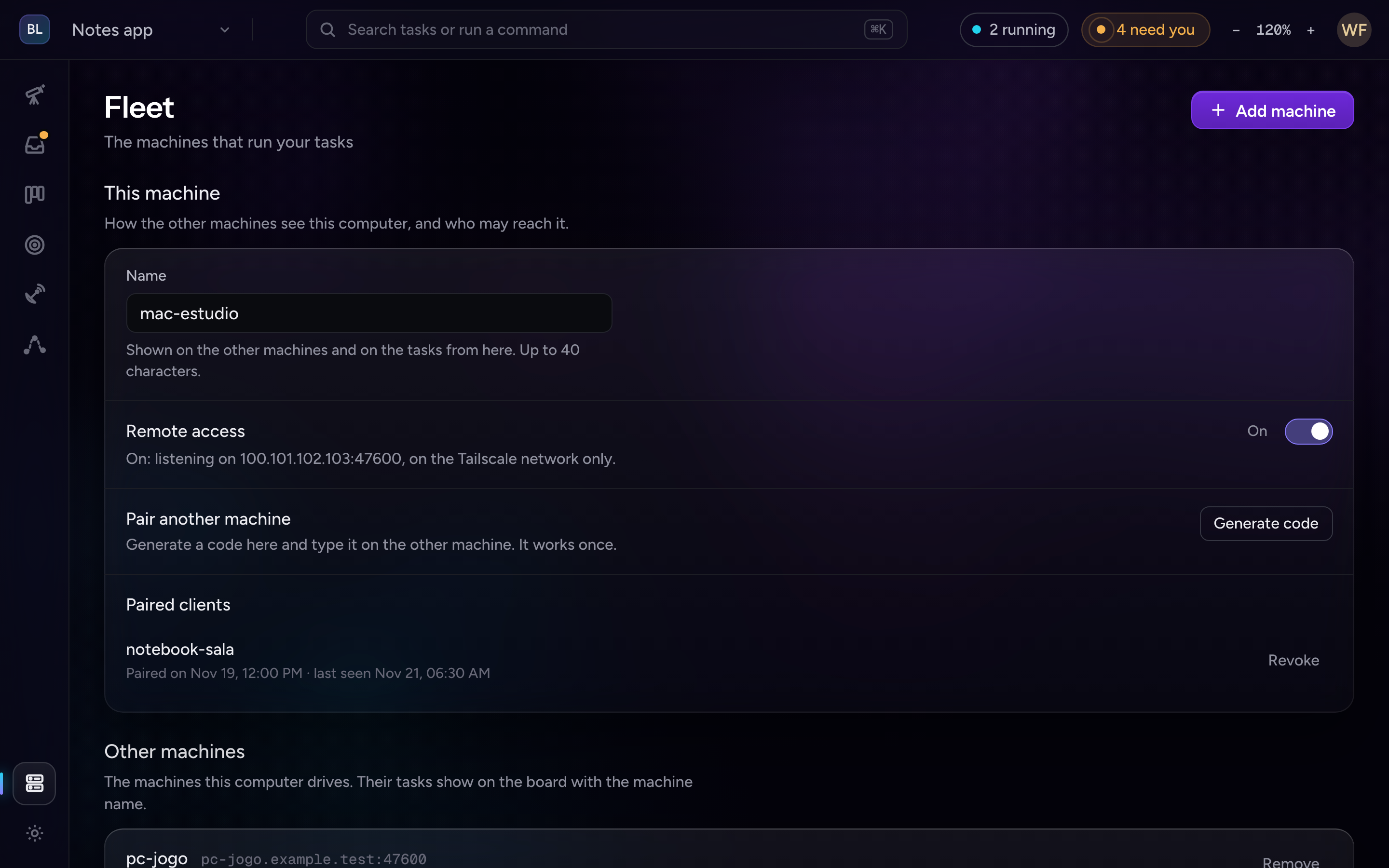
Open Fleet, the icon just above Settings on the left rail. Under This machine, check the Name: it is what your laptop will see, and it starts as the computer’s name. Change it and leave the field to save.
-
Turn the Remote access switch on. With Tailscale up, the line under it says “On: listening on 100.101.12.7:47600, on the Tailscale network only.” Without a Tailscale address it says “On, but with no Tailscale address: open Tailscale and connect this computer.” Starting Tailscale later is enough; the daemon checks for the address every 30 seconds.
-
Under Pair another machine, click Generate code. The Pairing code shows with the time it is valid until.
-
Check the current state.
remoteandmachinesdo not take--workspace.Terminal window astranize remote{"type":"remote","enabled":false,"port":47600,"address":null,"listening":false,"machine":{"id":"e026f298-f7ab-4b29-be36-b77bf1f80426","name":"studio-pc"},"pairing":null,"error":null}addressis the machine’s Tailscale address, ornullwhen Tailscale is not up.machine.namedefaults to the computer name, and it is what your side will see. -
Turn remote access on.
Terminal window astranize remote enable{"type":"remote","enabled":true,"port":47600,"address":null,"listening":false,"machine":{"id":"e026f298-f7ab-4b29-be36-b77bf1f80426","name":"studio-pc"},"pairing":null,"error":null}The setting is saved in
~/.astranize/remote.json, so it survives restarts. Herelisteningstaysfalsebecause this test machine has no Tailscale address. With Tailscale up,addressshows something like100.101.12.7andlisteningbecomestrue. -
Make a pairing code.
Terminal window astranize remote code{"type":"pairing_code","code":"H9Y3-68N7","expiresAt":"2026-11-22T04:59:26.535Z"}This is the only command that prints the code.
remotefrom now on only says that a code is open and when it expires:{"type":"remote","enabled":true,"port":47600,"address":null,"listening":false,"machine":{"id":"e026f298-f7ab-4b29-be36-b77bf1f80426","name":"studio-pc"},"pairing":{"expiresAt":"2026-11-22T04:59:26.535Z"},"error":null}
The code works once and expires after 10 minutes. Five wrong tries cancel it, and making a new code replaces the old one. In the app, the code disappears when you leave Fleet, so generate it when you are ready to type it.
Pair from your machine
Section titled “Pair from your machine”Now switch to your laptop. Pairing trades the code for a token that only your machine holds, and that token is stored in your Vault. Unlock the Vault first: adding a machine while it is locked fails.
-
Open Fleet and click Add machine.
-
Type the Address of
studio-pc, its name or IP on the Tailscale network with nohttp://or slashes, and the Code. Leave Port empty to use the default, 47600. -
Click Add. The app says “studio-pc joined the Fleet”, and
studio-pcshows under Other machines as Connected, with its workspaces.
If the app cannot add it, the dialog stays open and says why, for example “That address is not a machine on the Tailscale network.” or “The code is wrong, already used or expired. Generate another on the other machine.”
-
Add the machine with its Tailscale address, or its Tailscale machine name, and the code.
Terminal window astranize machines add --address studio-pc --code H9Y3-68N7On success it prints your machine list, with the new machine
connectingand thenconnected. The machine gets a key made from its name, herestudio-pc, and you use that key in every later command. Pairing the same machine again reuses the key.An address outside Tailscale is refused before anything is sent:
{"type":"error","message":"192.168.1.20 is not a machine on the Tailscale network"} -
List your machines.
Terminal window astranize machines{"type":"machines","machines":[]}The list is empty on a machine that has not paired yet. Each entry has
key,id,name,address,port,statusandsince. -
See the other machine’s workspaces.
Terminal window astranize machines workspaces studio-pcIt prints
{"type":"workspaces","workspaces":[...]}fromstudio-pc. For a key you never paired, it answersno machine "nope" is paired.
Work on the other machine
Section titled “Work on the other machine”Once paired, studio-pc’s tasks show on your board with the machine’s name, next to your own.
From the CLI, add --machine <key> to a workspace command, and it runs on that machine instead of yours. For example, to check a task’s status on studio-pc:
astranize status t-0004 --workspace game --machine studio-pcThe same flag works for the whole life of a task, from creating it to following its events:
astranize create --workspace game --machine studio-pc --title "Fix the save menu" --description "..."astranize ideate t-0004 --workspace game --machine studio-pc --followastranize status t-0004 --workspace game --machine studio-pcastranize events --workspace game --machine studio-pcastranize queue pause --workspace game --machine studio-pc--workspace names the workspace on the other machine. When your local name for it differs, pass --workspace with your local name and --machine-workspace with the remote one.
Files on your machine stay on your machine
Section titled “Files on your machine stay on your machine”Some options name a file on your computer, and that path means nothing over there. --attach, --fake, --fake-playwright and --from are refused with --attach names a file of this machine and cannot go to another one. The exception is validate --file: the CLI reads the file and sends its text.
Secrets stay with the machine that uses them, too. A Vault entry for a workspace on studio-pc is stored in studio-pc’s Vault, even when you add it from your machine.
Revoke, rename or remove a machine
Section titled “Revoke, rename or remove a machine”Each side can cut the link.
On studio-pc, Fleet lists your laptop under Paired clients, with when it paired and when it was last seen. Revoke asks “Revoke laptop?” and, once confirmed, your laptop loses access right away. To come back, it needs a new code.
On your laptop, Remove next to studio-pc under Other machines asks “Remove studio-pc from the Fleet?”. Its tasks leave your app but keep running there. The app forgets the machine, its token and its workspaces, so adding it again later reads them fresh.
To rename a machine, change its Name under This machine. To stop accepting connections, turn Remote access off.
On studio-pc, list the clients that paired with it:
astranize remote clients{"type":"remote_clients","clients":[]}Each client has an id (such as c-1a2b3c4d5e6f), name, createdAt and lastSeenAt. Revoke one by id. Its open connections drop at once, and its machine list shows revoked.
astranize remote revoke c-1a2b3c4d5e6fAn unknown id answers:
{"type":"error","message":"no paired client with id \"c-123\""}To change the name your side sees (1 to 40 characters; a trailing .local is dropped):
astranize remote rename --name studio-pcTo stop accepting connections, turn remote access off:
astranize remote disableOn your machine, forget a machine and delete its token from your Vault:
astranize machines remove studio-pcTurning remote access off closes the listener and cancels any pending code. Paired clients stay paired, so turning it back on restores them. To cut a machine off for good, revoke it on the serving side as well as removing it on yours.
Windows notes
Section titled “Windows notes”- The home is
%USERPROFILE%\.astranize, with the same files as on macOS. - Commands in
config.yamlrun in Git Bash by default (it comes with Git for Windows). Setshell: powershellorshell: cmdfor a workspace that needs them. See Write config.yaml. - The
worktreepermission mode is refused for Claude steps on native Windows, because Claude Code’s sandbox is not available there. Useask, orfreeon purpose. See Permission modes. - The Vault key is kept by the Windows credential store by default.
- Tailscale works the same way: the daemon finds the
100.xaddress on any network interface.
- The home is
~/.astranize. - Commands run with
sh -c;shell: powershellandshell: cmdare errors. - The Vault key is kept in the Keychain by default.
Good to know
Section titled “Good to know”Pairing goes one way
Section titled “Pairing goes one way”Pairing lets your machine command the other one, not the reverse. To command your Mac from the Windows PC as well, repeat the steps the other way round: turn remote access on and generate a code on the Mac, then Add machine on the PC.
How the connection is protected
Section titled “How the connection is protected”By default the daemon listens only on 127.0.0.1. Remote access adds a second listener on the machine’s Tailscale address (an IPv4 address in 100.64.0.0/10), port 47600. It never listens on 0.0.0.0 or any other interface, and it rejects connections from addresses outside that range.
Your token is stored in your Vault as a secret named machine:<key>, listed in Settings, Vault, as a Paired client token. Once paired, your daemon keeps a live event stream from the other machine, reconnecting with backoff (2 s up to 30 s), and forwards your --machine commands to it.
Machine status
Section titled “Machine status”| In the app | status |
Meaning |
|---|---|---|
| Connecting | connecting |
Your daemon is opening the connection. |
| Connected | connected |
Commands and events flow. |
| Disconnected | disconnected |
The other machine cannot be reached right now. |
| Vault locked | locked |
Your Vault is locked, so the token cannot be read. Unlock it in Settings. |
| Access revoked | revoked |
The other machine no longer accepts your token. Remove it and pair again. |
Other messages
Section titled “Other messages”- With remote access off, Generate code is disabled (“Turn remote access on to generate a code.”), and
remote codeanswersremote access is off: turn it on before pairing. - A listener error, such as the port being taken, shows as “Remote access is not listening.” in Fleet and in the
errorfield ofremote. - Set the port (Port in Add machine,
--port <n>inmachines add) only when the other machine listens on a port other than47600.
Which commands go through
Section titled “Which commands go through”| Kind | Commands |
|---|---|
| Writing (run by the remote daemon’s queue) | create, ideate, approve, adjust, run, validate, stop, decide, retry, archive, mission run/retry, probe enable/disable/poll |
| Reading | list, status, step-defaults, decisions, changes, metrics, summaries, flow, limits, usage, settings, instruct, video-caught, and the read actions of mission and probe |
| Streams and files | events, queue (pause and resume only), files, vault |
Next steps
Section titled “Next steps”- Fleet for the model behind paired machines.
- Fleet commands for every flag of
remote,machinesand--machine. - Vault for how the pairing token and your secrets are kept.