
Tasks
A task is one piece of work, such as a feature or a fix, that Astranize carries from idea to validated delivery.
A task is one piece of work you hand to Astranize: “add a tag filter to the notes list”, “fix the login redirect”. You describe the idea, and the task carries everything that happens next: the spec, the acceptance criteria, the code changes, the test results, the review, the proof video and your final word. When you look at the board in the desktop app, every card is a task.
Each task belongs to one workspace and gets a short id like t-0001. It moves through the steps of a flow, and it stops whenever it needs you.
Your first task
Section titled “Your first task”Creating a task only needs a title and a description:
astranize create --workspace notes --title "Add a tag filter to the notes list" \ --description "Users want to filter notes by tag."{"type":"task_updated","task":{"id":"t-0001","title":"Add a tag filter to the notes list","namePrefix":"astra","status":"backlog","currentStep":null,"returns":0,"humanRounds":0,"repos":[],...}}The task now exists with status backlog: nothing has run yet. To start it, ask the ideator to write the spec, then approve it:
astranize ideate t-0001 --workspace notes --followastranize approve t-0001 --workspace notes --followFrom here the developer writes code, the gates run the tests, the reviewer reads the diff and the summary step writes up what was done and how to test it. When all of that passes, the task waits for your final review.
How a task moves
Section titled “How a task moves”A task always has a status that says where it is. When it enters a step, the status follows from the kind of step:
- A step where you act (an approval or a validation) sets
waiting_you. - A step that waits for something outside Astranize, such as CI, sets
waiting_others. - Every other step sets
running.
An agent can also stop and ask you a question. The task then switches from running to waiting_you until you answer, and goes back to running after.
Only some moves are allowed from each status. For example, you cannot approve a task that is already running. A command that does not fit fails with a message like this:
Invalid transition: event "<event>" is not allowed from status "<status>"The full list of statuses is in All statuses at the end of this page.
Where the task shows up on the board
Section titled “Where the task shows up on the board”The Tasks screen in the desktop app groups tasks into five columns. Each card shows the task title, its repo, a track of the flow steps, and a line that says what is happening now or what the task needs from you.
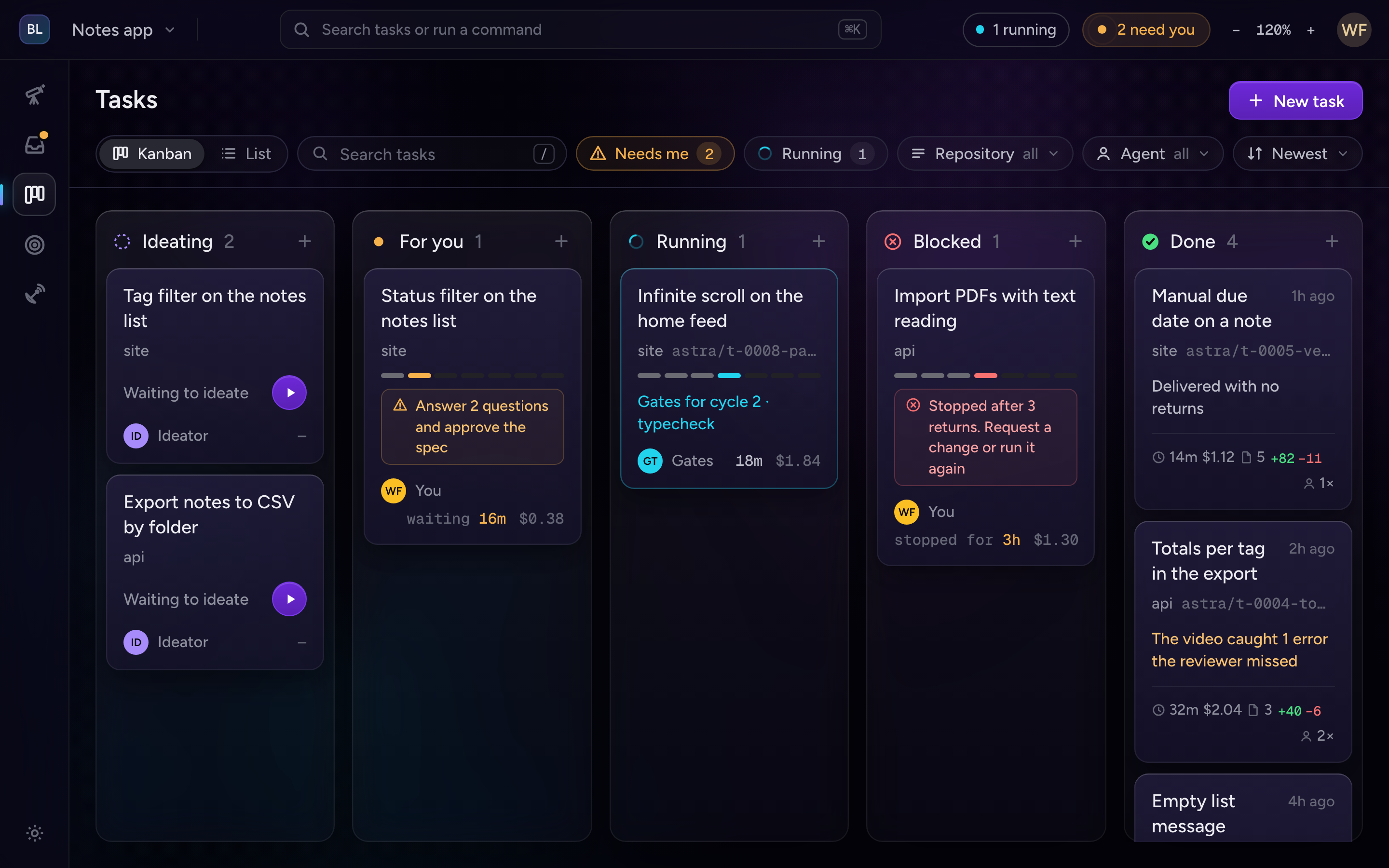
This is how the statuses map to the columns:
| Column | Tasks shown |
|---|---|
| Ideating | backlog, queued, and running on an ideate step |
| For you | waiting for an approval, a validation or a decision |
| Running | every other running, plus waiting_others and iterating |
| Blocked | blocked |
| Done | done |
The For you column is highlighted when it has tasks. The same items are listed on the For you screen. Archived tasks do not appear on the board.
Your code stays untouched
Section titled “Your code stays untouched”The developer never works in your own checkout. When the first code step runs, Astranize creates a separate git worktree for each repo the task needs, branched from that repo’s base_branch. It runs the repo’s setup command once (with a 15 minute limit) and copies the files listed in copy, for example .env.
Each worktree is on its own branch, named after the task id and title:
astra/t-0001-add-a-tag-filter-to-the-notes-listThe part after the id is the title in lowercase ASCII with dashes, cut to 40 characters. Commands that Astranize runs for a task get ASTRANIZE_NAME_PREFIX in their environment, so your own scripts can build the same names.
Worktrees live under ~/.astranize/workspaces/<ws>/worktrees/<task-id>/<repo>/. To keep them on another disk, set worktrees_root to an absolute path in ~/.astranize/settings.json. They then go to <worktrees_root>/<ws>/<task-id>/.
Cycles and returns
Section titled “Cycles and returns”Each time the developer works on the task is called a cycle. Cycle 1 is the first build. When a later step finds a problem and sends the task back, the developer starts a new cycle with that problem in hand.
Sending the task back is called a return. Three things cause one:
- a gate fails, and the task follows the step’s
on_failroute; - the reviewer rejects, and the task follows
on_reject; - you reject the validation, and the task follows one of its
routes.
Astranize counts returns so a task cannot loop forever:
- An automatic return (from the gates or the reviewer) adds 1 to
returns. Whenreturnswould go past the flow’smax_returns(3 in the default flow), the task blocks with reasonmax_returnsinstead. - A return from a step where you act (an approval or a validation) adds 1 to
humanRoundsand does not count againstmax_returns. - Going back to the ideator resets
returnsto 0. - The “run again” route that a mission adds for its
repeatrounds does not count.
Each cycle keeps its own folder under runs/<task-id>/cycle-N/ with what the developer received, the agent transcript and the gate results.
When a task blocks
Section titled “When a task blocks”A task blocks when something stops it that it cannot fix alone: an agent crashed, the returns ran out, a step has no route for its result. A blocked task keeps the reason and the step it stopped on, and it opens a blocked decision on the For you screen.
To try again, run retry or pick Try again on the decision. Most blocks retry the step they stopped on. A task blocked on max_returns cannot retry the same step, so retry restarts it from the develop step if the spec was approved, or from the first step if not.
A full run, from create to archive
Section titled “A full run, from create to archive”Here is a task whose first build blocked, was retried, then validated and archived. Output is trimmed to the relevant fields.
astranize ideate t-0001 --workspace notes --followastranize approve t-0001 --workspace notes --follow{"type":"queued","taskId":"t-0001","position":1}{"type":"step_started","taskId":"t-0001","step":"developer","cycle":1,"model":"sonnet"}{"type":"step_finished","taskId":"t-0001","step":"gates","cycle":1,"outcome":"failed"}{"type":"step_started","taskId":"t-0001","step":"developer","cycle":2,"model":"sonnet"}...{"type":"decision_opened","taskId":"t-0001","decision":{"kind":"blocked","title":"Blocked: agent_crashed:developer",...}}The gates failed on cycle 1, so the developer got a cycle 2. Later the developer agent crashed and the task blocked. A retry picks it up in a new cycle:
astranize retry t-0001 --workspace notes --follow{"type":"step_started","taskId":"t-0001","step":"developer","cycle":4,"model":"sonnet"}{"type":"step_finished","taskId":"t-0001","step":"gates","cycle":4,"outcome":"passed"}{"type":"step_finished","taskId":"t-0001","step":"reviewer","cycle":4,"outcome":"passed"}{"type":"step_finished","taskId":"t-0001","step":"video","cycle":4,"outcome":"passed"}{"type":"decision_opened","taskId":"t-0001","decision":{"kind":"validation","title":"Validate the delivery of Add a tag filter to the notes list",...}}Everything passed and a validation is waiting. You validate, then archive the task:
astranize validate t-0001 --workspace notes --file verdict.jsonastranize archive t-0001 --workspace notes{"type":"task_updated","task":{"id":"t-0001","status":"done",...}}{"type":"task_updated","task":{"id":"t-0001","status":"archived",...}}Edit a task
Section titled “Edit a task”You can fix a task’s title at any time, and its description until the work is locked in. The description is what the ideator turns into a spec, so once you approve that spec, the spec is the source of truth and the description is locked. In a flow with no approval step, the description locks as soon as the task first starts instead.
Open the task and click Edit at the top right. The dialog has Title and Description, and says when each one can change.
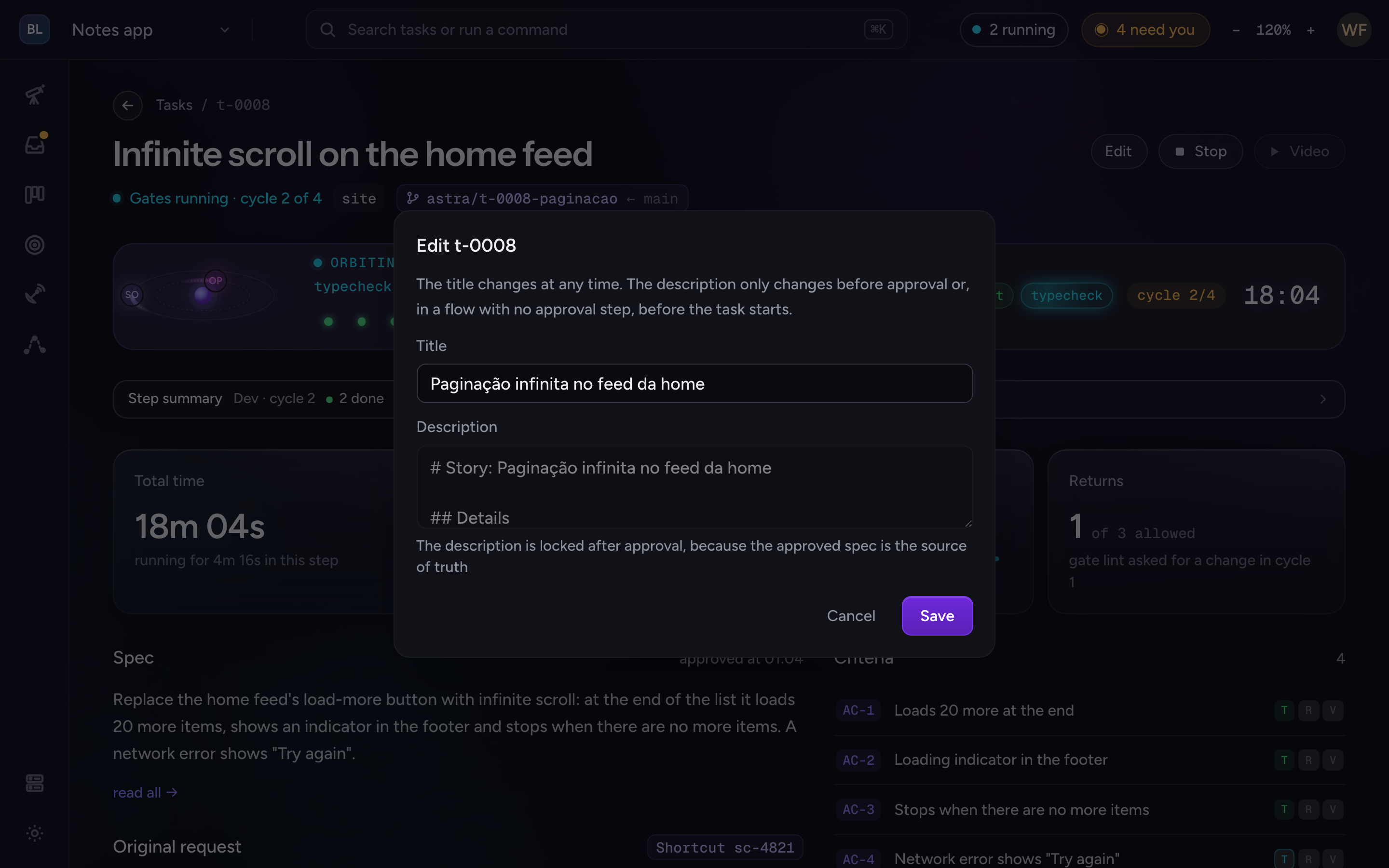
Click Save to get “Task saved”. An empty title is refused with “The title cannot be empty.” If the task changed while the dialog was open, for example from the CLI, nothing is overwritten: the dialog says “The task changed while you were editing: title.” and offers Reload.
astranize edit t-0001 --workspace notes --title "Colored tags"{"type":"task_updated","task":{"id":"t-0001","title":"Colored tags",…,"editRevision":1}}--description changes the description the same way, and --commit changes the task’s commit override. Every edit adds 1 to editRevision; pass --if-revision <n> to refuse the edit when someone else changed the task since you read revision n. The CLI reference lists every error.
Archive a task
Section titled “Archive a task”Archiving takes a task off the board without deleting anything. archive works on any task that is not running. The task file, the worktree and runs/<task-id>/ stay on disk. list hides archived tasks, and list --archived shows only them.
Delete a task
Section titled “Delete a task”Deleting is for archived tasks only, and even then nothing is thrown away. The task file, its run folder and its worktrees move to the Astranize trash, ~/.astranize/trash/, and the commits stay on the task’s branch.
Open an archived task. Next to Edit there is Delete, which asks “Delete t-0001?” and explains what goes to the trash.
When you confirm and a worktree still has uncommitted work, the dialog stops and lists it, for example web (3 files), and explains “Delete anyway keeps the uncommitted diff and the worktrees in the trash, nothing is lost.” For a task that never commits, it adds that its worktree holds all of its work. Click Delete anyway to go on. The board then drops the task and a notice shows the trash folder.
astranize archive t-0001 --workspace notesastranize delete t-0001 --workspace notes{"type":"task_updated","task":{"id":"t-0001","status":"archived",…}}{"type":"task_deleted","taskId":"t-0001","trash":"~/.astranize/trash/notes-t-0001-2026-11-22T043916.314Z"}A task that is not archived is refused with Só dá para apagar tarefa arquivada. A worktree with uncommitted work stops the command with the list of files, and --force goes on anyway.
Uncommitted work is saved next to the task as uncommitted-<repo>.patch, so you can apply it again with git apply. The trash folder also holds the task file, run/ and worktrees/.
How you use it
Section titled “How you use it”Everything starts on the Tasks screen.
- To create a task, click New task, give it a Title and a Description, and click Create task. You can also pick Import from Shortcut and paste a story link or ID.
- To write the spec, find the new card in Ideating (it says Waiting to ideate) and click its play button, or open the task and click Ideate.
- To approve the spec, open the task when its card moves to For you and says, for example, Answer 2 questions and approve the spec. The same item is on the For you screen under Answer questions. Answer the questions and click Approve, or click Request changes to send it back to the ideator with your comment.
- To follow one task, click its card. The task overview shows the spec, the criteria, the steps and what is happening now, and opens the live session.
- To find tasks, switch between Kanban and List, search, and filter with Needs me, Running, Repository and Agent.
- To retry or archive a blocked task, answer its blocked decision on For you: Try again, Request changes or Archive.
- To change a task’s title, or its description before approval, open it and click Edit. An archived task also has Delete.
- To change when a task commits, open Advanced in New task, or use the Commit pill in the session.
Archiving a task that is not blocked is CLI only for now.
| You want to | Command |
|---|---|
| Create a task | create --title ... --description ... |
| Write the spec | ideate <id> |
| Approve the spec | approve <id> |
| See one task | status <id> |
| List tasks | list / list --archived |
| Retry a blocked task | retry <id> |
| Edit the title, description or commit | edit <id> --title ... --description ... --commit ... |
| Archive | archive <id> |
| Delete an archived task | delete <id> |
Every command takes --workspace <name>. Commands that change something go through the daemon; add --follow to stream events until the job ends. See the CLI reference.
All statuses
Section titled “All statuses”| Status | Meaning |
|---|---|
backlog |
Created, nothing has run yet. |
queued |
Waiting in the daemon queue for a free slot. See Queue and capacity. |
running |
An agent or a check step is working on it. |
waiting_you |
Stopped on you: an approval, a validation or an open decision. |
waiting_others |
On a wait step, waiting for something outside Astranize. |
iterating |
Reserved; Astranize does not set it today. Shown as running. |
blocked |
Stopped with a reason (blockedReason) and the step it stopped on (blockedFrom). |
done |
Every step passed and you validated it. |
archived |
Off the board. History and artifacts stay on disk. |
Good to know
Section titled “Good to know”The task file
Section titled “The task file”Each task is a Markdown file at ~/.astranize/workspaces/<ws>/tasks/<id>.md. The YAML frontmatter holds the state, in snake_case keys, and the body holds four fixed sections:
---id: t-0001title: Add a tag filter to the notes listname_prefix: astrastatus: blockedcurrent_step: nullcurrent_step_type: nullreturns: 2human_rounds: 0repos:  - apiacceptance_criteria:  - id: AC-1    text: The notes list shows a tag filter    proof:      - videohistory:  - at: 2026-11-20T02:10:23.337Z    event: created  # ...video_caught_miss: falseblocked_reason: agent_crashed:developerblocked_from: developer---
## Description
Users want to filter notes by tag.
## Spec
...
## Answers and adjustments
## Validation
Keys worth knowing: repos (filled by the ideator), acceptance_criteria (each with a proof of unit, integration, manual or video), questions, history (every event with a timestamp), flow (the Trajectory the task uses, written when it is not default or when the workspace sets a default_flow), commit (the task’s commit override), edit_revision (how many times you edited it), profile, permission_mode and request (the source story when imported from Shortcut). Files written before the switch to snake_case still load; migrate-yaml-keys rewrites them, see YAML keys. The full list is in Files and directories.
Astranize checks the frontmatter on every read. A broken file shows up as <file>: invalid frontmatter: <field>: <problem> instead of crashing the board.
Where everything lives
Section titled “Where everything lives”Directory~/.astranize/workspaces/notes/
Directorytasks/
- t-0001.md
Directoryworktrees/
Directoryt-0001/
Directoryapi/ worktree on branch astra/t-0001-…
- …
Directoryruns/
Directoryt-0001/
- events.jsonl
- decisions.json
- spec.md
Directoryideator/
- …
Directorycycle-1/
- developer-input.md
- developer.jsonl
- gates.json
- gates/api-tests.log
- report.json
- diff.patch
Older branch names
Section titled “Older branch names”Tasks created before the rename keep the old orq/ branch prefix.
Next steps
Section titled “Next steps”- Flows: the steps a task goes through
- Commits: when a task’s work becomes a commit
- Gates: what sends a task back to the developer
- Decisions: how a task waits for you
- Files and directories