
Missions
A mission runs work that is not a code change, such as a weekly report or a release chore, as a list of steps you start by hand or a probe starts for you.
Not every job is “write code in a worktree”. Sometimes you want to count the notes changed this week and have an agent summarize them, back up a database, or post release notes to Slack. A mission is that kind of job: a list of steps, like a flow, but with no code task behind it.
You can start a mission by hand, or let a probe start it when something new shows up. Each time it runs you get a run, numbered r-0001, r-0002 and so on, with its own history, decisions and cost.
Create your first mission
Section titled “Create your first mission”A mission is a YAML file in the workspace’s missions/ folder. You can fill in a form in the app, or write the file yourself.
Open Missions from the left rail and click New mission. When the workspace has no missions yet, the screen says “No Missions launched yet” and also offers two examples, Weekly release and Weekly summary on Slack, that open the same form with a name and label already filled in.
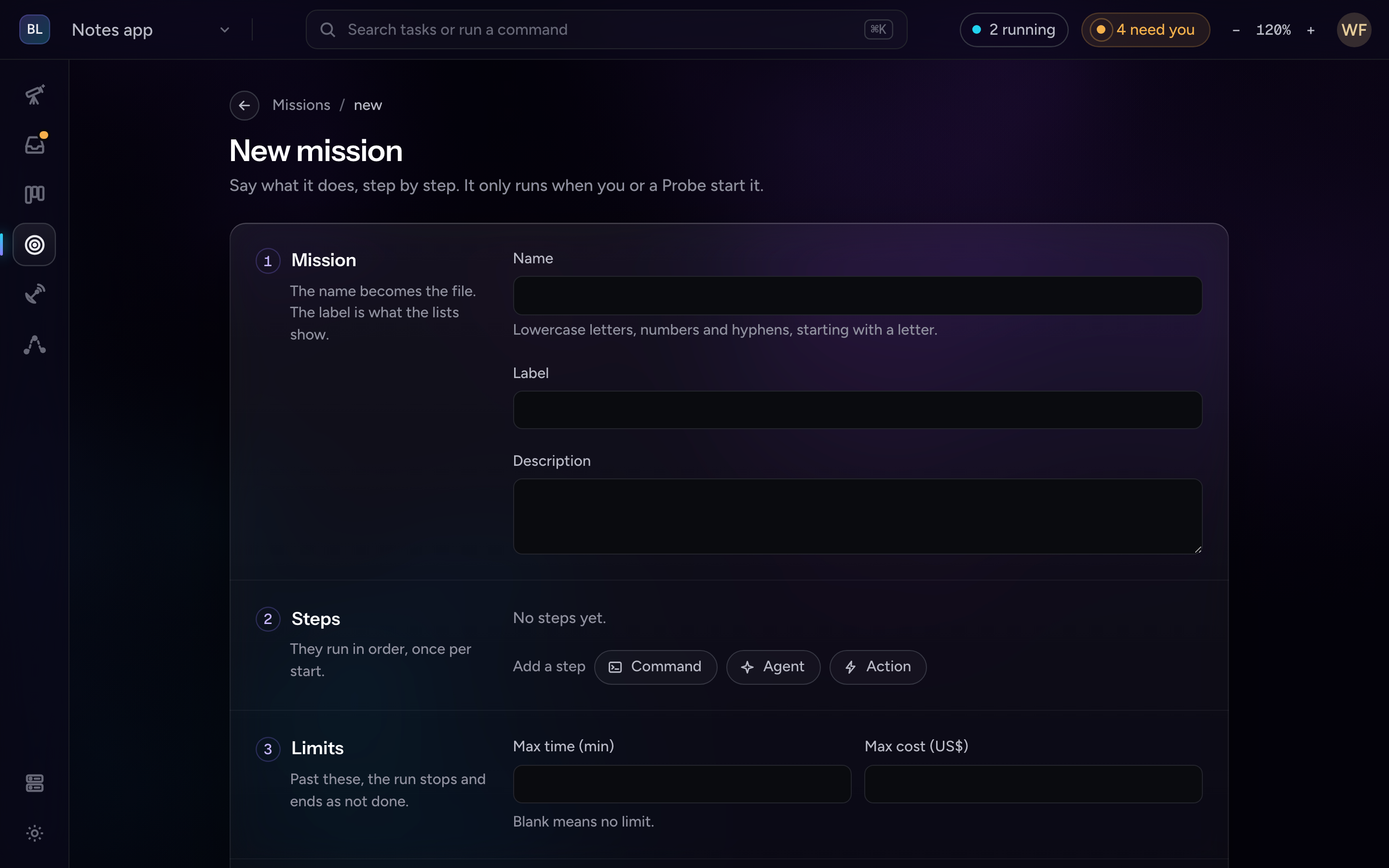
The form has four parts:
- Mission: the Name becomes the file name, so it takes lowercase letters, numbers and hyphens, starting with a letter. The Label is what the lists show.
- Steps: Add a step adds a Command, an Agent or an Action. Steps run in order, once per start.
- Limits: Max time (min) and Max cost (US$). Past these, the run stops and ends as not done. Blank means no limit.
- Confirmation: whether a probe has to ask you before it starts the mission. It only applies when a probe starts it.
Click Create mission. The app says “Mission backup-notes created” and saves missions/backup-notes.yaml.
Save the file in the workspace’s missions/ folder, for example ~/.astranize/workspaces/notes/missions/backup-notes.yaml. The file name is the mission name. mission list shows it right away; no restart is needed.
Either way, you end up with a file like this one. It has two shell commands: dump the notes, then check the dump.
version: 2label: Back up notessteps: - id: dump type: command run: "node scripts/dump.mjs" - id: check type: command run: "node scripts/check-dump.mjs"Run it and follow the run
Section titled “Run it and follow the run”Running a mission by hand never asks for confirmation. The run goes through the daemon queue like a task.
Click Run on the mission’s row in the Missions list, or open the mission and click Run now. Run now takes you straight to the run screen. You can also open any past run from Recent runs on the mission’s page.
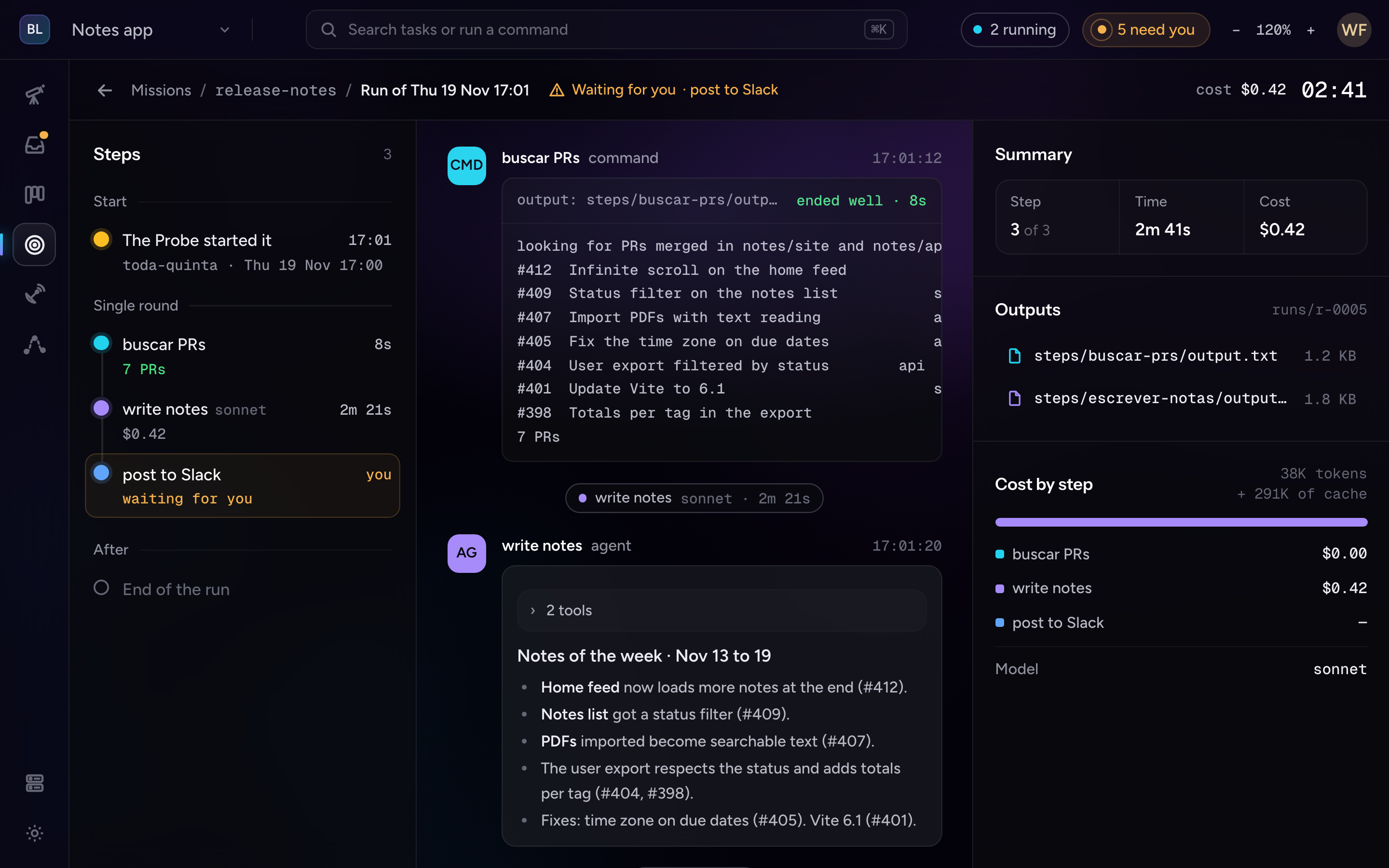
The left column lists the steps with their state, duration and cost, from who started the run to the end of the run. The middle shows each step’s output as it runs. The right side sums up the run: the current step, active time and cost, the files each step wrote, and the cost of each step. A step that waits for you has Answer in For you; a blocked run has Try again.
astranize mission run backup-notes --workspace notes{"type":"mission_run_queued","run":{"id":"r-0001","mission":"backup-notes","status":"running","trigger":{"by":"manual"},"startedAt":"2026-11-20T02:54:30.164Z","costUsd":0,"rounds":1}}A couple of seconds later, mission show reports the run as done:
astranize mission show backup-notes --workspace notes{"type":"mission","mission":{"name":"backup-notes","label":"Back up notes","confirm":true,"steps":[{"id":"dump","type":"command"},{"id":"check","type":"command"}],"lastRun":{"id":"r-0001","status":"done",...},"successRate":1,"runsThisMonth":1,"probes":[]},"runs":[{"id":"r-0001","mission":"backup-notes","status":"done","trigger":{"by":"manual"},"startedAt":"2026-11-20T02:54:30.164Z","finishedAt":"2026-11-20T02:54:32.498Z","costUsd":0,"rounds":1}]}The run’s record keeps the last output line of each command as its summary:
history: - event: action_done data: { step: dump, summary: dumped 42 notes } - event: action_done data: { step: check, summary: '{"ok":true}' } - event: donemission: name: backup-notes trigger: { by: manual } round: 1A mission runs one run at a time. If you start it while a run is in progress, the new run waits and starts right after the current one ends.
Pass one step’s output to the next
Section titled “Pass one step’s output to the next”Steps get more useful when they build on each other. Here a command counts the notes changed since the last run, and an agent writes a digest from that count:
version: 2label: Weekly digestdescription: Count the notes changed this week and write a short digest.limits: { max_minutes: 20, max_cost_usd: 1 }steps: - id: count type: command run: "node scripts/count-changed.mjs --since {lastRun.at}" - id: digest type: agent prompt: prompts/digest.md input: "Notes changed: {steps.count.output}"The values in braces are filled in before each step runs:
{steps.<id>.output}is the output of an earlier step, and{steps.<id>.output_file}is the file that holds it;{lastRun.at}is when the last successful run started (or when the mission file was created);{trigger.item.fields.<field>}is a field of the item that started the run, when a probe started it.
The limits line caps each run at 20 minutes of active time and US$ 1. Agent steps in a mission work in the run’s own folder, not in a worktree, and their output is saved so later steps can use it.
Which steps a mission can use
Section titled “Which steps a mission can use”The form offers the three steps most missions need:
- Command runs a shell command without asking you first.
- Agent runs a prompt from the workspace (Settings, Instructions). The form lists the prompts you have.
- Action calls a service. Two providers are built in:
slackwithmessage.post(Channel and Text), andgithubwithpr.listMerged(Repository and Since) andrelease.create(Repository, Tag and Release notes). The form asks for the params each one needs, and the mission is refused without them.
In the YAML you can also use wait, approval and parallel steps. The form shows those as “only changes in the YAML tab”. Steps that only make sense for code, such as develop or check, are refused when the file loads, and so is an agent step that runs on Codex.
A command step looks like this:
- id: count type: command run: "npm run count" # the command cwd: ~/code/notes/api # optional env: { TOKEN: "vault:GitHub" } # optional, vault: values come from the Vault timeout_seconds: 300 # optionalA vault: value in env is read from the Vault when the step runs, so the token never sits in the file. In the form, Add a secret on a Command step does the same: you pick a Variable name and a Vault secret by name, and the value never shows on screen. An Action step picks its integration token the same way under Token, and uses the secret named after the provider (Slack, GitHub) by default.
Keep going until a goal is reached
Section titled “Keep going until a goal is reached”Some missions should repeat until something is true, for example “until every flaky test is fixed”. You describe that with repeat: a goal in words and a done_when step that checks it.
A pass through the steps is called a round. With repeat, Astranize adds the done_when step at the end. If it fails, the run goes back to the first step for another round.
The run stops after max_rounds rounds (10 by default), or when it passes max_minutes or max_cost_usd. The run is marked not_done and asks you with a decision, “did not reach its goal in 10 rounds”, with two options: try N more rounds, or end. Trying more resets the time and cost budget. Ending leaves the run as not_done.
The mission’s page shows the Goal and its round limit, and lists the steps under “Steps of each round”. repeat is set in the YAML tab.
Ask before a probe starts a run
Section titled “Ask before a probe starts a run”When a probe starts a mission, Astranize asks you first by default. A card appears on the For you screen, “The Mission weekly-digest wants to run”, with Run and Skip this time. When a watching probe found several new items at once, the card reads “3 new items want to run the Mission” and offers Run all, Choose (pick the items to run) and Skip. Runs you start by hand never ask.
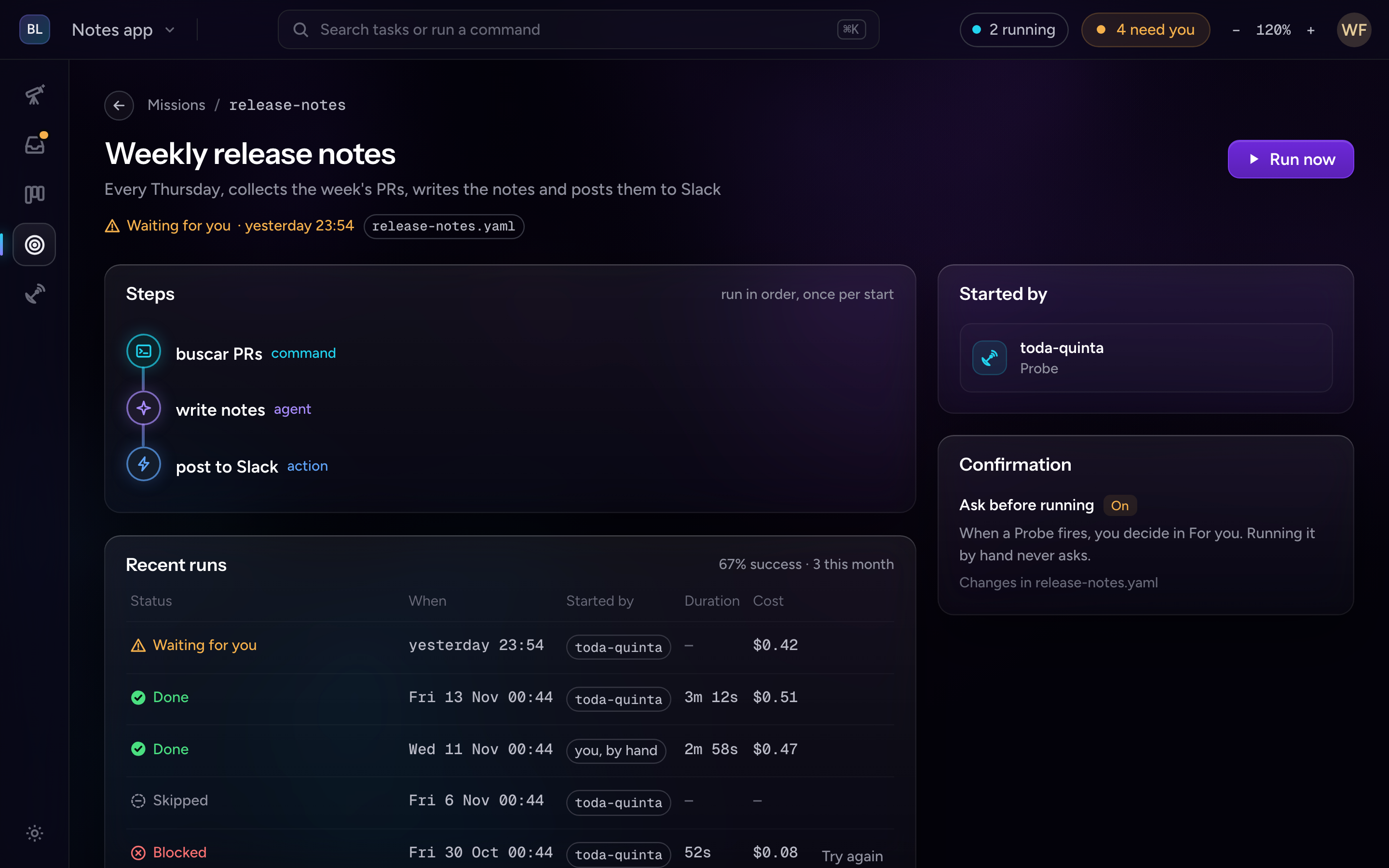
To let probe runs go on their own, open the mission and turn off Ask before running under Confirmation. The page then says “Off: when the Probe fires, the run is queued and goes on its own.” In the file, that is confirm: false.
Edit or delete a mission
Section titled “Edit or delete a mission”A mission’s page has three tabs: Runs, Edit and YAML.
- Edit opens the same form as New mission. The name is the file and does not change here. Save says “Mission weekly-digest saved”, and comments you wrote in the file stay.
- YAML shows the file itself, for the keys the form does not cover. A file that does not load opens on this tab, with the error that stops it, so you can fix it or still delete it.
If the file changes on disk while you edit, the app does not overwrite it: it shows the conflict and lets you reload.
Delete, at the top of the page, asks “Delete weekly-digest?” and reminds you that a copy stays in the version history. Astranize refuses to delete a mission that is still in use, and names what holds it:
- a run that is still active;
- a probe that starts the mission;
- a confirmation that waits for you in For you.
A deleted mission takes its run history with it to the trash, so a new mission with the same name starts with no runs. To bring one back, scroll down the Missions list to Deleted and click Restore.
All options
Section titled “All options”Mission keys
Section titled “Mission keys”A mission file uses the same keys as a flow, except name and subject: the name comes from the file name, and the subject is always mission. These keys only exist on missions:
| Key | Default | Meaning |
|---|---|---|
confirm |
true |
When a probe starts the mission, ask you first with a mission_confirm decision (run, skip, and pick when the probe found several items). Runs started by hand do not ask. |
limits.max_minutes |
none | Active time budget per run. |
limits.max_cost_usd |
none | Cost budget per run. |
repeat.goal |
What the run tries to reach. | |
repeat.done_when |
A command or agent step that says whether the goal is reached. |
|
repeat.max_rounds |
10 |
Rounds before asking you. |
Action steps
Section titled “Action steps”| Key | Meaning |
|---|---|
action.provider |
slack or github. |
action.do |
message.post for Slack; pr.listMerged or release.create for GitHub. |
action.token |
vault:<name>. Defaults to the Vault secret named Slack or GitHub. |
action.channel, action.text |
Required by message.post. |
action.repo, action.since |
Required by pr.listMerged. |
action.repo, action.tag, action.body |
Required by release.create. |
Run statuses
Section titled “Run statuses”| Status | In the app | Meaning |
|---|---|---|
queued |
Queued | Waiting in the daemon queue. |
running |
Running | A step is working. |
waiting_you |
Waiting for you | Stopped on a decision. |
waiting_others |
Waiting for others | On a wait step. |
blocked |
Blocked | Stopped; retry it with Try again or mission retry. |
done |
Done | Every step passed. |
not_done |
Not done | It used up its rounds, minutes or cost without reaching the goal. A mission_rounds decision asks whether to try more. |
failed |
Failed | The daemon restarted and could not start the run again, for example because the mission file no longer loads. |
skipped |
Skipped | You chose to skip it when a probe wanted to start it. |
Where runs are kept
Section titled “Where runs are kept”- The run record:
missions/<name>/records/r-NNNN.md - Its files:
missions/<name>/runs/r-NNNN/(events.jsonl,decisions.json,usage.jsonl,steps/,report.json)
Good to know
Section titled “Good to know”- Astranize keeps the latest 50 runs of each mission. Older ones are deleted unless they are blocked.
{steps.<id>.output}is cut at 100 KB;{steps.<id>.output_file}has all of it.- A step type a mission does not allow fails to load with
step "<id>": "<type>" is not allowed in a mission. - Mission names follow the flow name pattern. Run ids are
r-plus at least 4 digits; anything else fails withInvalid run id "<id>": expected the format r-0001. - The “run again” route used for rounds does not count as a return.
- The run screen only receives a step’s output lines while the step runs. A run you open later shows each step’s state, files and cost, not the live lines.
Next steps
Section titled “Next steps”- Probes: start a mission on a schedule or when something new appears
- Decisions: how mission confirmations and rounds ask you
- Vault: the secrets and tokens a step picks by name
- Missions and probes commands